SprintGuard Documentation
Everything you need to install, configure, and get the most out of SprintGuard, the semantic quality gate that lives natively inside Jira.
How SprintGuard Works
SprintGuard is a silent daemon. It monitors your Jira projects and intercepts weak tickets before they contaminate your sprint.
Ticket Created
A developer or PM creates a Jira ticket. SprintGuard is triggered automatically. No manual action required.
Semantic Analysis
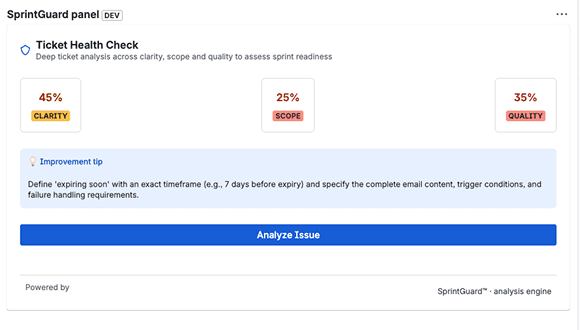
The Semantic Analysis Engine scores the ticket across three dimensions: Clarity, Scope, and Quality (0–100 each).
Gate & Feedback
Low-quality tickets are moved to the backlog. A structured comment is posted with the score and actionable fix instructions.
Installation
SprintGuard installs directly from the Atlassian Marketplace. No code changes, no infrastructure setup.
Install from the Atlassian Marketplace
Go to the Atlassian Marketplace, search for "SprintGuard", and click "Try it free". The 30-day trial starts immediately. No credit card required.
Activate SprintGuard on your Jira projects
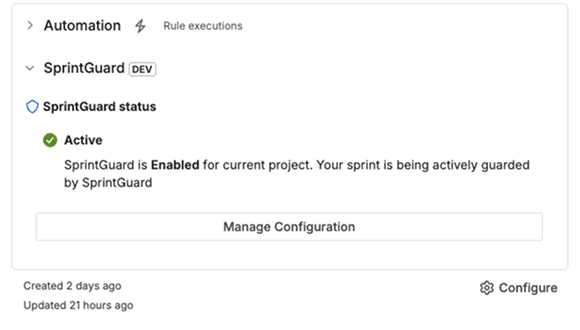
Navigate to any Jira project → Project settings → SprintGuard. Toggle SprintGuard to Active. You can enable it per-project or across your entire site.
Configure your tech stack (optional)
In the Admin panel, define your team's technology stack and architecture preferences. SprintGuard uses this context to generate more precise quality feedback tailored to your codebase.
Create a ticket and watch it work
Create any Jira issue. Within seconds, SprintGuard will analyze it, post a score and feedback comment, and move weak tickets to your backlog automatically.
Understanding Quality Scores
Every ticket receives three scores from 0 to 100. Together they form the overall Quality Score that determines whether a ticket is sprint-ready.
Is the objective immediately obvious? SprintGuard checks whether the ticket title, description, and goal are unambiguous and free of vague language.
Clear objective, specific deliverable, no ambiguous terms
Vague titles, unclear goals, multiple unrelated objectives
Are the boundaries explicitly defined? SprintGuard checks whether the ticket defines what is in scope, what is out of scope, and what done looks like.
Explicit acceptance criteria, defined boundaries, testable outcomes
Missing acceptance criteria, unbounded scope, no definition of done
The overall ticket quality — a holistic score combining clarity, scope, completeness, and whether a developer can pick it up without follow-up questions.
Sprint-ready: developer can start immediately with zero ambiguity
Needs rework: developer would require clarification before starting
Score Thresholds
Ticket passes. Stays in the current sprint. No action taken.
Ticket flagged. A feedback comment is posted. Ticket remains in sprint by default but is highlighted for review.
Ticket fails the quality gate. Automatically moved to backlog. A full analysis comment is posted with specific recommendations.
The SprintGuard Comment
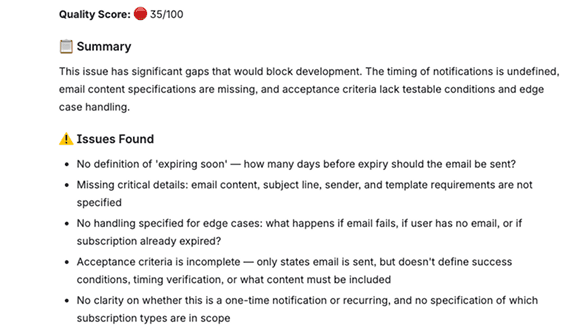
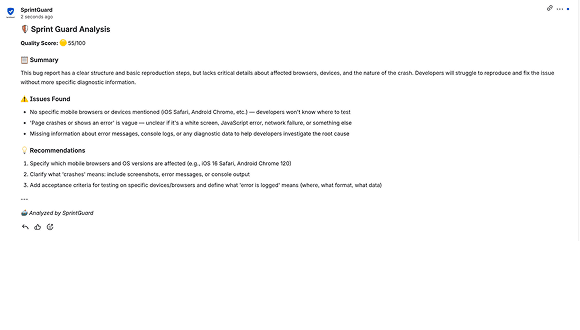
When a ticket fails, SprintGuard posts a single structured comment directly on the Jira issue. No notifications. No separate dashboards. Everything the author needs is right there.
Quality Score
A prominent score out of 100 with a colour-coded indicator (green / amber / red) so the author can see at a glance how far off they are.
Summary
A 1–2 sentence plain-English summary of the core issue, written to be actionable, not technical.
Issues Found
A ranked list of specific problems, sorted by impact. Only genuine blockers. SprintGuard never nitpicks formatting or style.
Recommendations
Concrete, immediately actionable steps the author can take to improve the ticket. Each recommendation is a single specific sentence.
Frequently Asked Questions
Common questions about SprintGuard's behaviour, data handling, and configuration.
Does SprintGuard slow down ticket creation?
No. SprintGuard processes tickets asynchronously. Ticket creation in Jira completes instantly. SprintGuard runs its analysis in the background and posts results within seconds.
Does SprintGuard store my Jira ticket content?
No. SprintGuard operates on a zero data retention principle. Ticket content is processed transiently for analysis and never stored permanently on our servers. Results are written back to Jira Entity Properties, stored by Atlassian, not us.
What happens if SprintGuard moves a ticket to the backlog by mistake?
You can move any ticket back to your sprint manually at any time. SprintGuard will re-analyse it when it is updated. False positives are rare. The scoring engine is calibrated to only block tickets with genuine quality gaps.
Can I configure the quality threshold?
The threshold is currently set at 40 for automatic backlog triage. Custom thresholds per project are on the roadmap. Contact support if you have specific requirements.
Which Jira plans does SprintGuard support?
SprintGuard supports Jira Cloud (Standard, Premium, and Enterprise plans). Data Center support is not available at this time.
How do I disable SprintGuard for a specific project?
Go to your Jira project → Project settings → SprintGuard → toggle Active to off. SprintGuard will immediately stop processing tickets for that project.
Can SprintGuard be configured for different issue types?
By default SprintGuard analyses all issue types. You can configure which issue types to include or exclude from the Admin panel under Project settings.
What AI model powers the analysis?
SprintGuard uses Anthropic's Claude model via a structured output pipeline. The model is instructed to score against engineering quality criteria — not general writing quality — ensuring scores are relevant to your development team.
Still have questions?
Our support team responds within 24 hours on business days.